Project context
connecTUM is a team project developed at TUM for the Cyber-Physical System course:
It’s a 3D printed & automated version of the popular game Connect 4 that can:
- detect the current board state from a camera,
- compute the next (best) move with an algorithm,
- and execute the move through the hardware.
My contribution
My main contribution was on the software side, especially on the computer vision, the main game loop and the CLI (report sections 5 - Computer Vision, 6.1 - File Hierarchy, and 6.2 - Command Line Interface).
Computer Vision
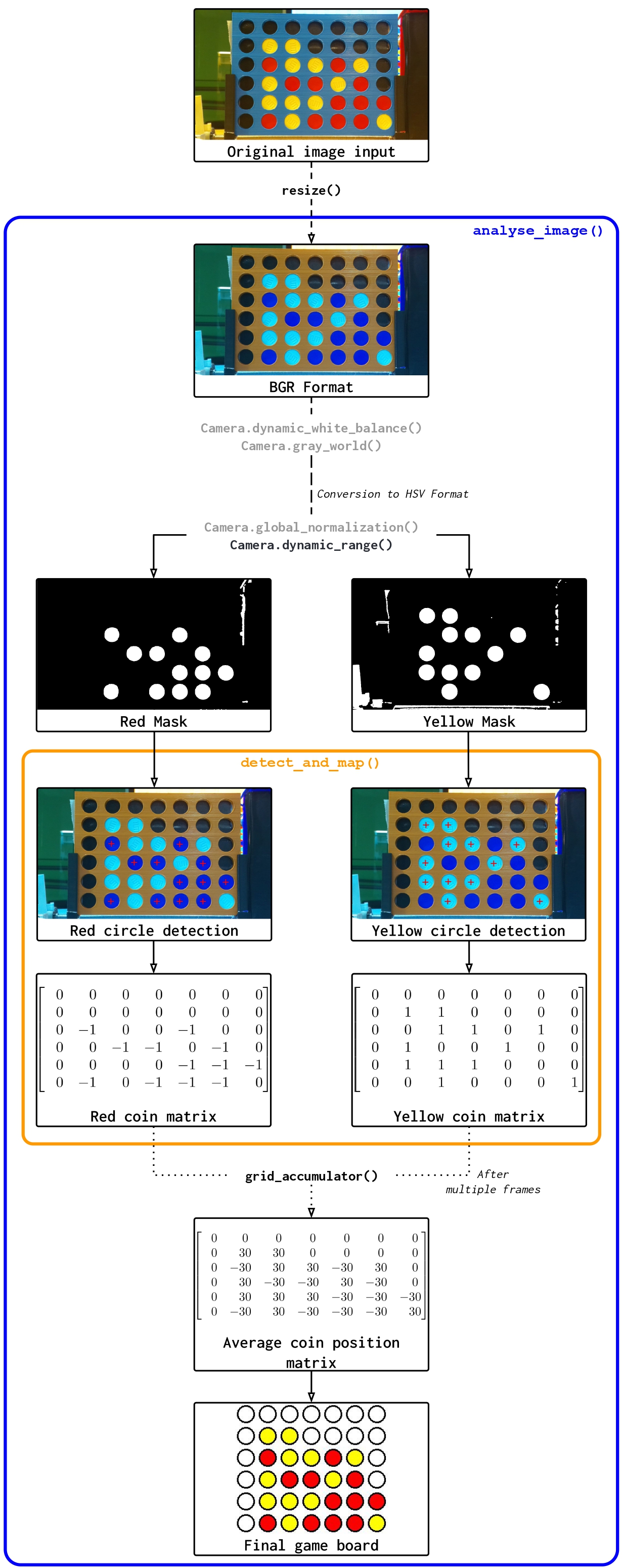
The main task I had on the project was to implement the camera pipeline that transforms live frames into a reliable 7x6 game state array. I describe here the most important features and underlying implementations.
- OpenCV-based processing of each frame (
camera.py) - color-based coin segmentation in HSV for red/yellow detection
- support for two color strategies:
FIX_RANGE: static HSV thresholdsDYNAMIC_RANGE: thresholds recomputed from a calibration zone each frame
- optional preprocessing steps for robustness in real lighting conditions:
- white balance
- gray-world normalization
- histogram-based global normalization
- blur and red-noise reduction
- grid computation and validation before exposing a move to the game loop
A numerous number of options can be choosen in preprocessing to improve the coins recognation. But using the DYNAMIC_RANGE strategy is overall more reliable in most light conditions.
The general workflow, from the raw input picture to the final game board array is furthermore describe here in the picture.
To improve the robustness of the coin detection and minimize errors due to noise, occlusions or vibrations I implemented a grid accumulator approach in the grid_accumulator() method.
Instead of relying on a single frame to determine the board state, the program processes multiple consecutive frames and keeps an ongoing count for each cell in the grid.
File Hierarchy and Process Split
I also worked on the project structure to keep complex behavior maintainable.
The game logic (handled in main.py) runs independantly from the camera. Both parts communicate trought multiprocessing shared state.
The motors are only called when needed and run throught their dedicated file.
This separation makes debugging and testing much easier. For example, the camera process can be runned alone (via camera.py) to test the camera setup and calibrate it if needed. Conversely, the main game logic can be launched without the camera which was helpful to improve and debug the Connect4 algorithm.
This logic is also true for the motors. In short, every important part can be isolated (or combined) for testing, debugging or calibrating.
This process separation is also essential to insure a smooth and seamless experience. Indeed, this allows the camera to work “in the background”,ensuring a reliable lecture of the game board without blocking the main loop (while the algorithm is computing or the motors are moving for example).
Command Line Interface
Finally I also developped a small but very handy CLI for a better development workflow and user experience.
The program has a single entry point (python3 main.py) with multiple options:
usage: main.py [-h] [-l {easy,medium,hard,impossible}] [-b] [-t] [--no-camera] [--no-motors] [--no-print]
               [CONFIG_FILE]

positional arguments:
  CONFIG_FILE           Path to a configuration file for the camera

options:
  -h, --help            show this help message and exit
  -l {easy,medium,hard,impossible}, --level {easy,medium,hard,impossible}
                        Select the level of difficulty (Default: impossible)
  -b, --bot-first       Make the bot play the first move
  -t                    Play a game only in the terminal (equivalent to: --no-camera --no-motors)
  --no-camera           Play a game using the terminal instead of the camera
  --no-motors           Play a game without moving the motors
  --no-print            Play a game without printing the board in the terminal
By default, the program is launched with the camera and the motors running. This CLI is really what enables the isolation of the different parts (game logic; camera; motors) with ease.
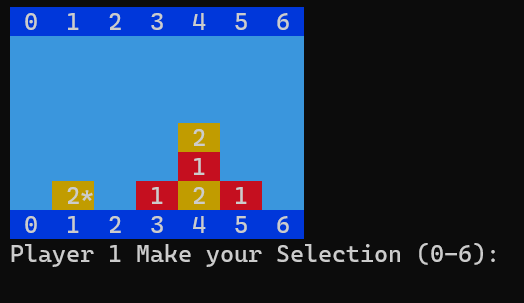
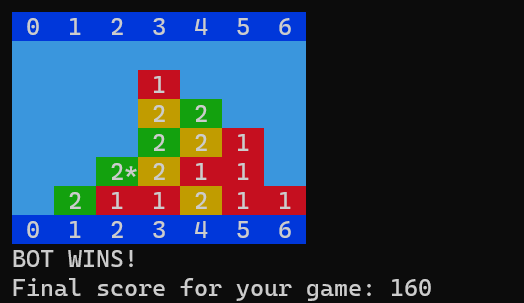
It also come with a user friendly rendering of the current game board in the terminal.
References
- Repository: CPSCourse-TUM-HN/connecTUM
- Final report and presentation: linked in the repository
presentation/folder